Storyboards is where a short film gets planned and made, and it makes interactive films: stories that branch, with more than one ending, where the person watching chooses what happens next. You bring your characters and places, set down the key moments as still pictures, describe what the camera does between them, and Nano Studio Pro turns each stretch into video. Add a decision and the story splits.
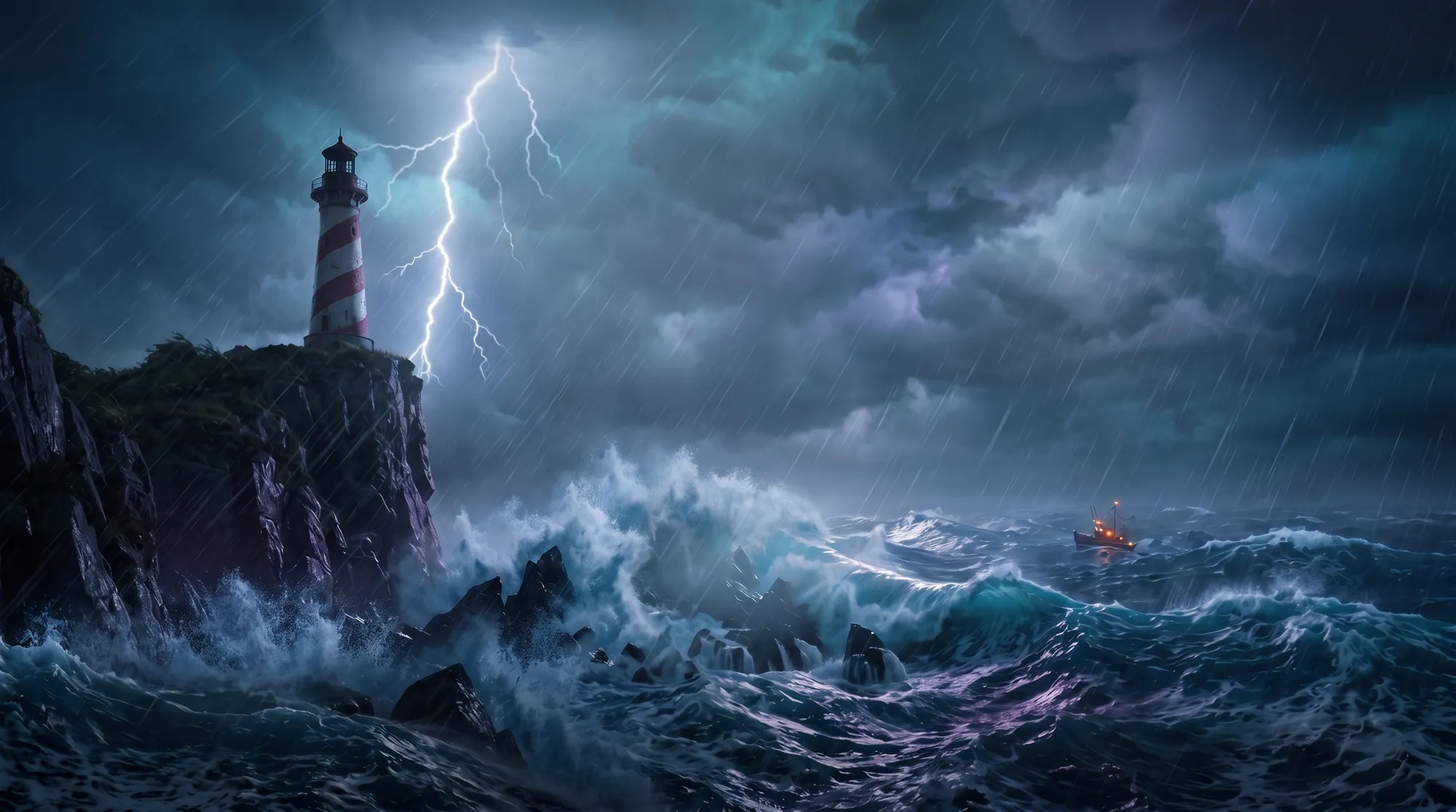
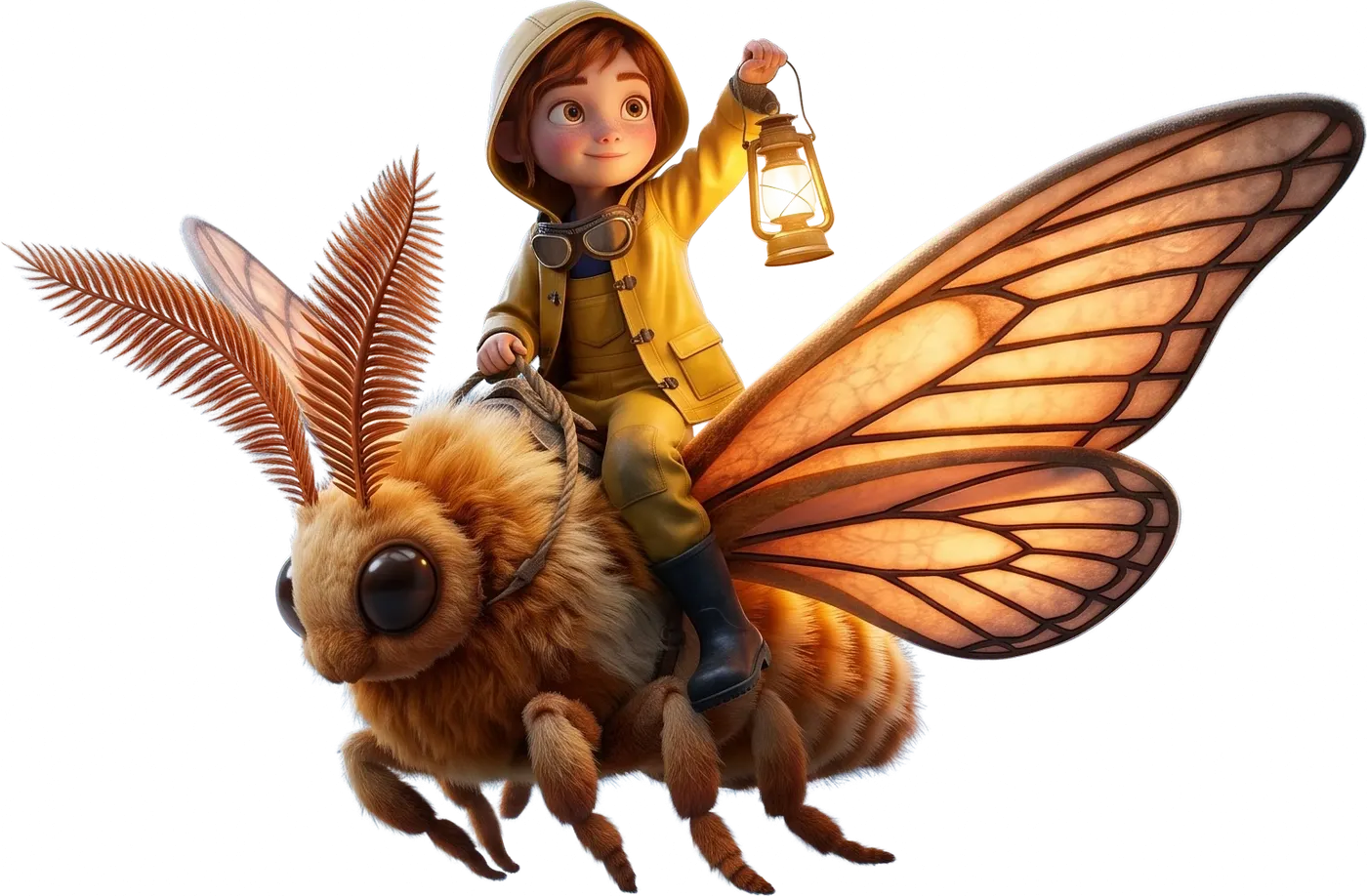
We made a film with it to show you. A storm puts out the lighthouse lamp while a fishing boat heads for the rocks, and Mira, the young keeper, whistles for Ember, her giant moth. Here is the trailer.
Play the film and choose her path
This is the film itself, exactly as anyone sees it from a share link. Press play, and when Mira reaches the cliff edge, choose: fly to the boat, or climb the tower. Click an option or press 1 or 2. Then go back and try the other one.
Start from a quick board, or from scratch
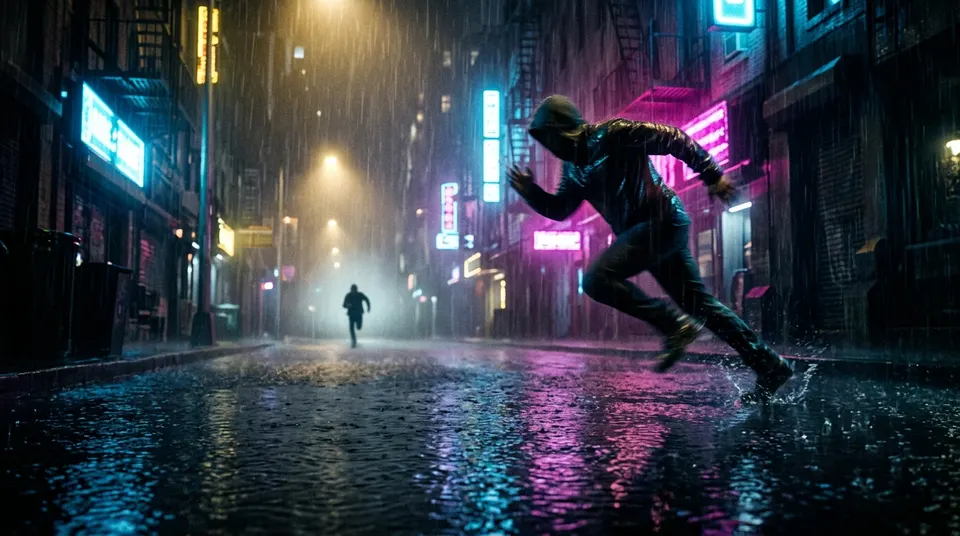
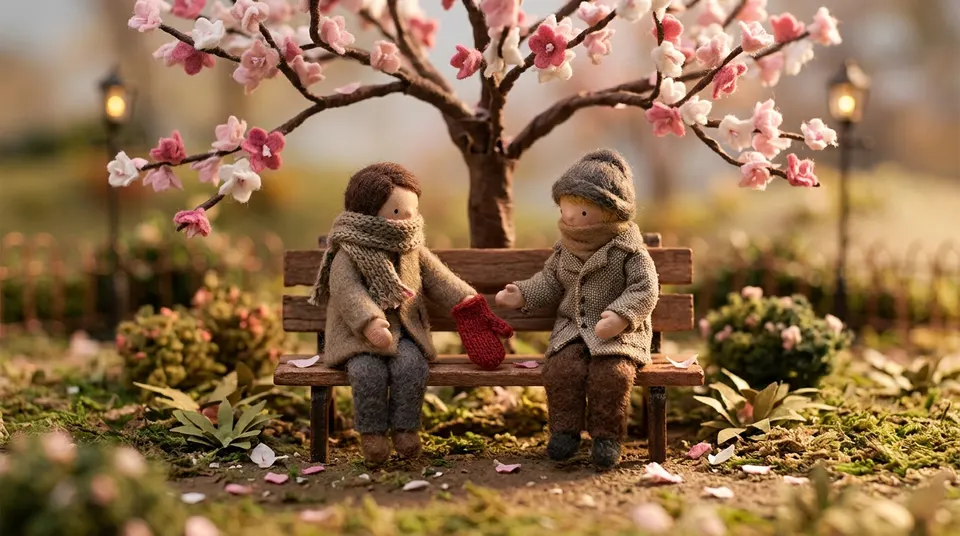
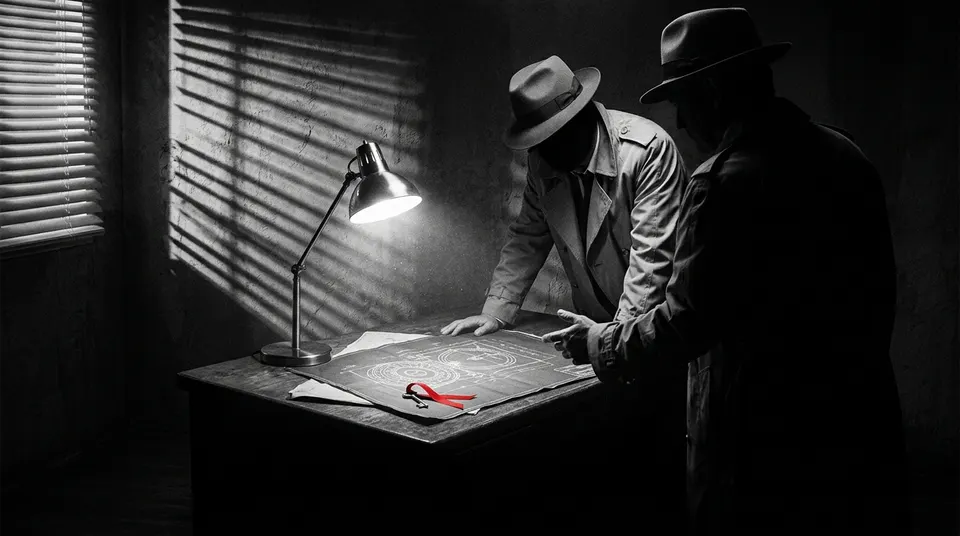
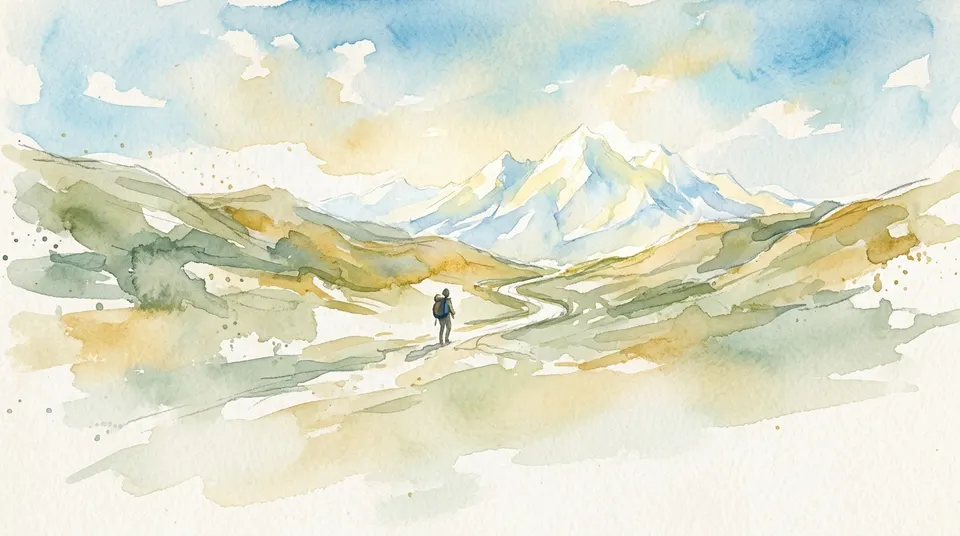
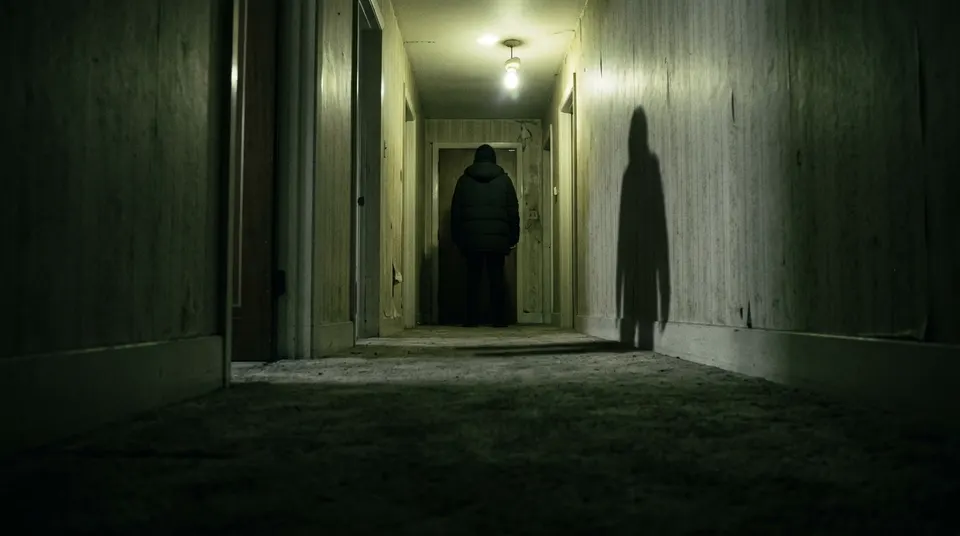
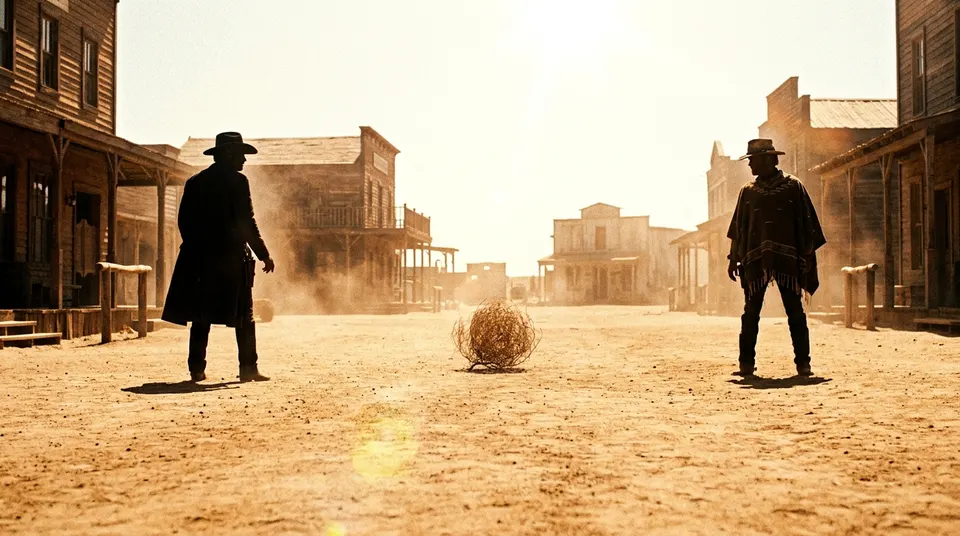
The Storyboards page shows your films first, each with its poster, and then fourteen quick boards: a chase, a first meeting, a heist, a journey, a twist, a duel, an escape, a day in the life, an ad, a product reveal, a trailer, a music video, a social clip and a before and after.
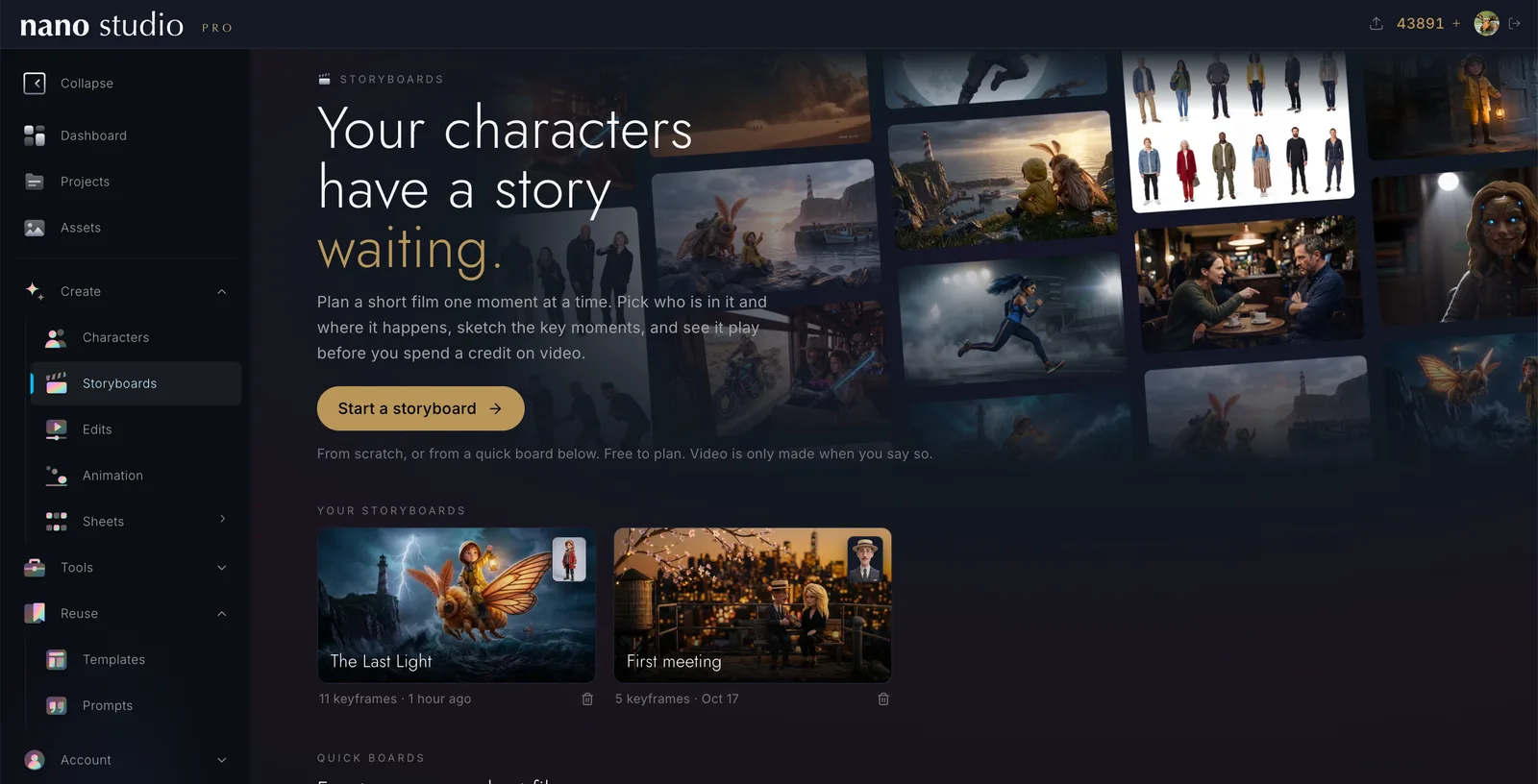
- Quick board: a few guided screens. Pick who is in it and where, the style, the time of day, the weather and the tone (comedy, drama, suspense, horror, romance, epic or light), then fill in the pieces of the story, each with a tip beside it.
- You choose: the heist, the escape and the twist come ready as interactive films with two endings.
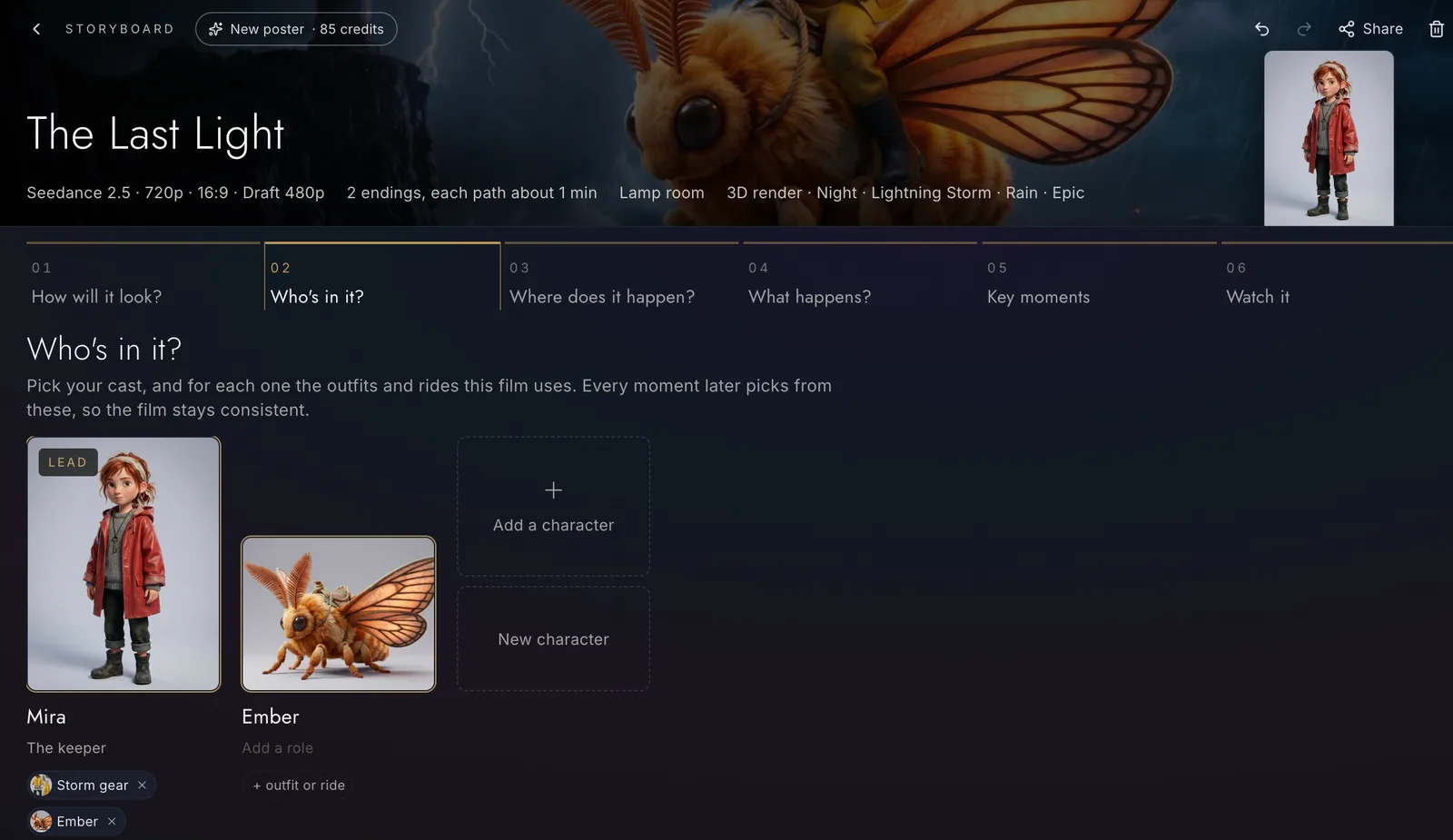
- From scratch: the full editor, one step at a time. The idea, the format and video model; your cast, with the outfits and mounts each character wears in this film; the places, each with its own sound; then the key moments.
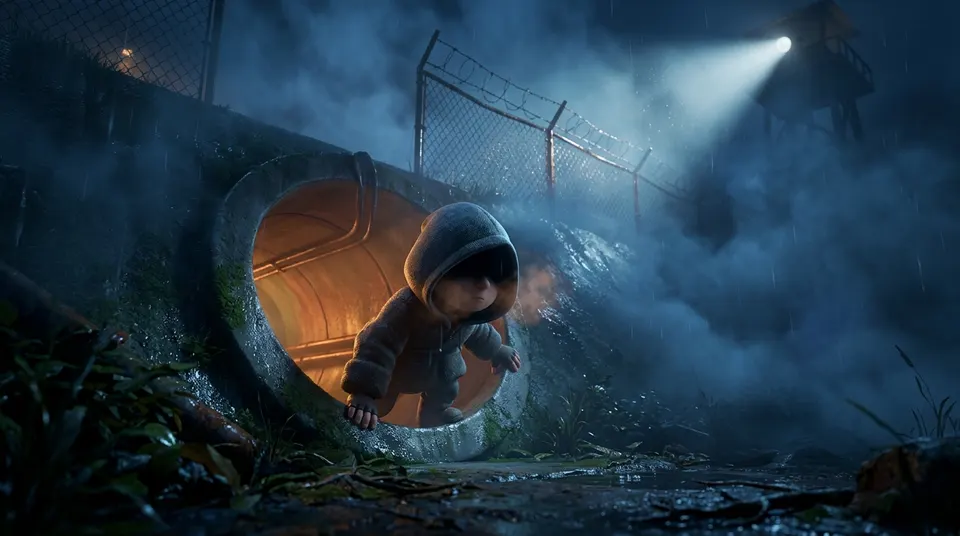
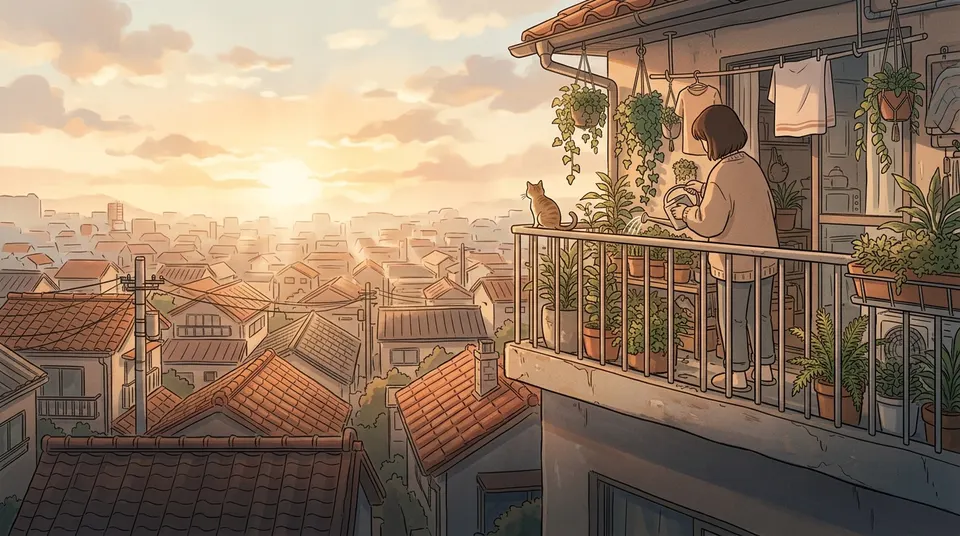
The story as a graph
Key moments is the heart of it: the whole film drawn as a graph you can open full screen. Each card is a keyframe, a still picture of one moment. Each line between two cards is a segment, the shot that gets from one to the next. Here is Mira's.

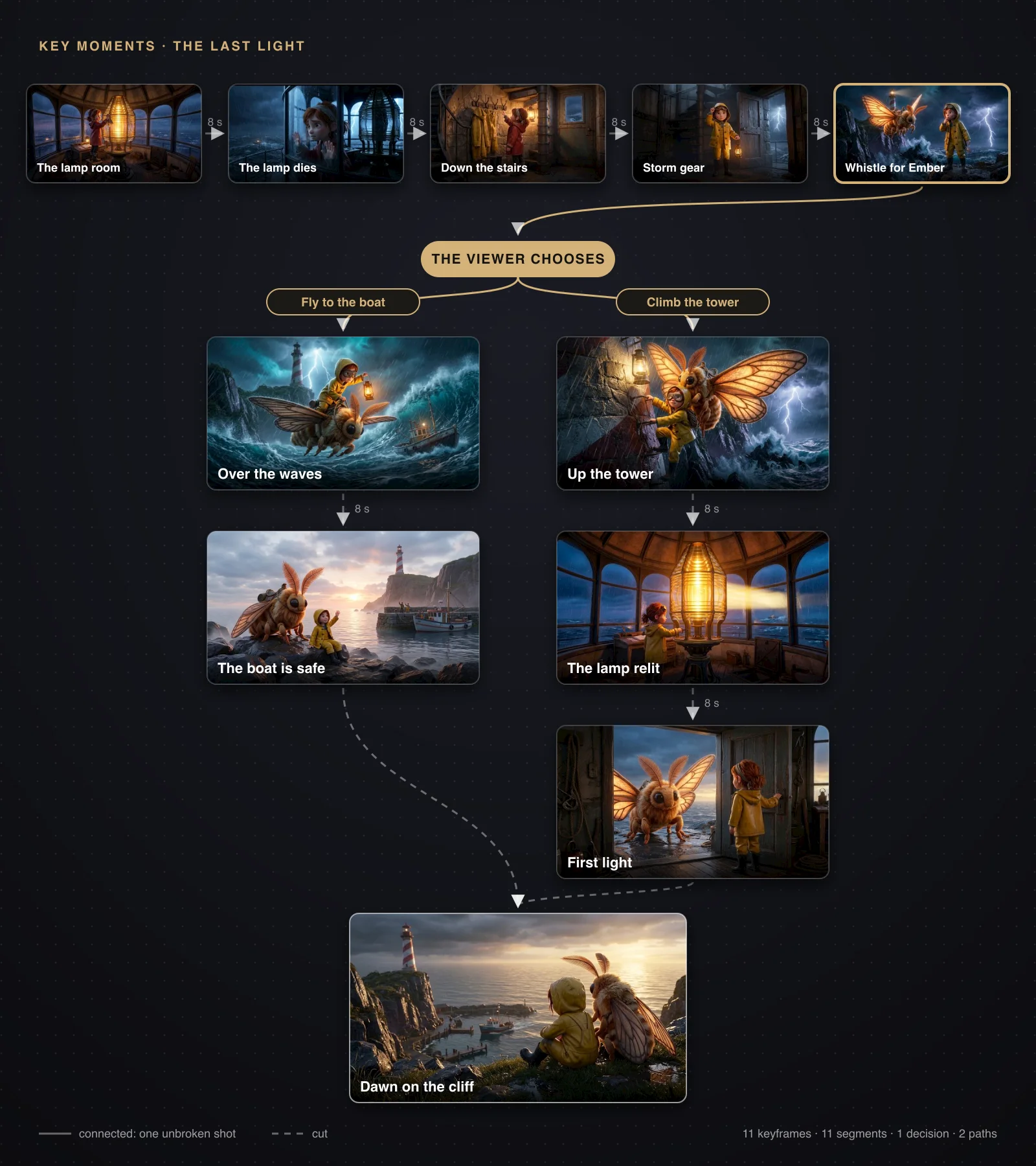
- Keyframes: pick a picture from your library, upload one, or generate it with your characters and places already in it. Make all the missing ones in one go, open any of them full size, and trim a white border off with one click.
- Segments: the camera and the action, how long it lasts, which video model makes it, and whether it joins the next shot as one unbroken take or as a cut.
- Decisions: options that split the story, each with its own path. While the viewer thinks, a short waiting loop plays, with a countdown and an option that is picked for them if they do not choose.
- An ending shot on every ending, so the film closes in motion rather than on a still.
- A look for each moment: time of day and weather, kept consistent along the way.
- Dialogue timed to the second, with who says it and how. Write the dialogue looks at your keyframes and proposes lines for every path, subtle, moderate or talkative, and nothing is kept until you keep it.
- Title cards and end screens, each ending with its own picture and music.
From pictures to video
- Generate one segment, one path, or the whole film. The price is on the button before anything is made.
- Draft at 480p to try a shot cheaply, then make the final at 1080p: the same shot, at full size.
- Several takes per segment, and you pick which one the film uses.
- Trim where each take starts and ends, and speed up just part of it with a smooth ramp.
- A sound list for the whole film: music and ambience, generated or uploaded, to use wherever you like.
Watch it before the video exists
Watch it plays the film from the very first keyframe, with the pictures and the dialogue, long before a single clip is made. As the video arrives it takes over, shot by shot, with no gaps and no flicker. Decisions appear on the picture like an interactive film, and gold marks on the progress bar show where they are.
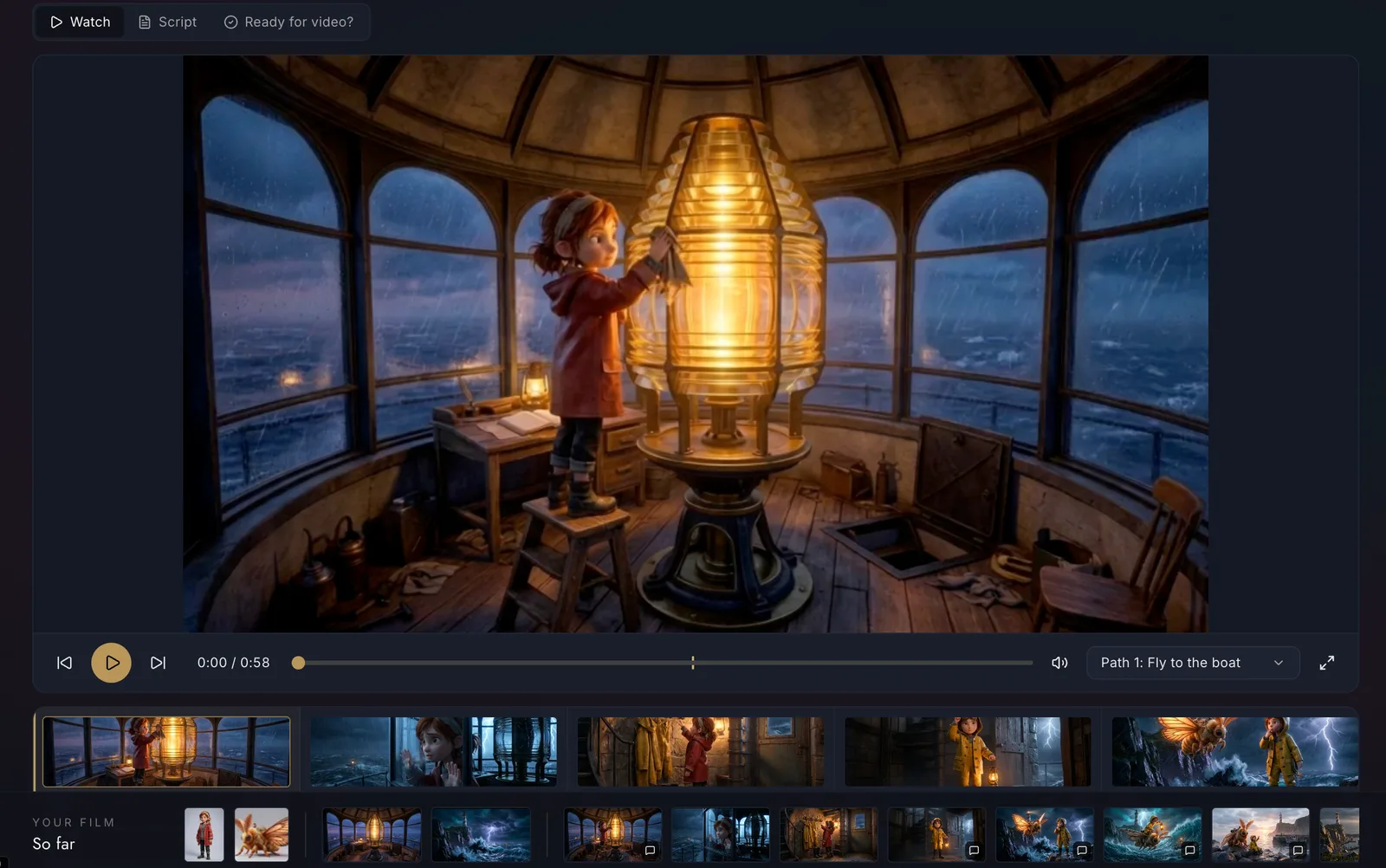
- Transitions take care of themselves: a dissolve or a fade through black when the place or the hour changes, their length set by the shorter clip, and the sound carried from one shot into the next.
- Each moment can be adjusted by hand: how it comes in, how long the transition lasts, whether its sound runs over or arrives early. Back to automatic is one button.
- Script view writes the whole film out as a script you can download.
A second pair of eyes before you share
Ready for video? reads the film in order and points out what a viewer would notice: an outfit that changes between two shots, a place or a light that jumps, a join that cannot work. Anything you did on purpose, you mark as intended.
Then the AI continuity check watches the clips themselves. It reads them with the same scan that makes your library searchable, so the clips become searchable too. It compares each cut and follows the state of the story, like the cracked lamp that has to stay broken until Mira turns the key. Every finding comes with the frames side by side, and you can review them in place with a player and next and previous buttons. Mark one Correct or The AI got it wrong, add a note, and it learns from you.
Share it with a link
- Every film can have a public /watch link: a frozen copy that anyone can play, like the one above.
- It opens on a start screen that never plays by itself, with the poster, the title music and how many endings there are. At the end, a card shows which endings you have found so far.
- Add a password or an expiry date if you like.
- The link has its own card with your poster, so it looks right in WhatsApp and on X.
- Update the public version and the link stays the same. Shared films also appear in the Shared tab.
- Make several posters for a film and pick the one used everywhere.
Your agent can make the whole film
Everything above is also on the API and on MCP: create and edit a board, generate with a quote first, write dialogue, run the continuity check, choose a poster, add sound and screens, and share. Each change an agent makes is signed in the film's history, and the page updates live while you watch it work.
What it costs
- Planning is free: the graph, keyframes from your library, cast, places, transitions, trimming and sharing.
- New keyframes and posters cost what any image does, and video costs what the model you pick costs per second. Every price is on its button.
- Write the dialogue: 3 credits for each keyframe it reads.
- AI continuity check: about 6 credits to read a six-second clip the first time, then about 3 credits per comparison.
How to try it
- Open Storyboards in the sidebar, under Create.
- Pick a quick board, or start from scratch.
- Set your key moments, add a decision if you want the viewer to choose, and press Watch it.
- Generate the video, a draft first if you like, and share the link.
Storyboards will keep growing. Next on our list: a map of the paths at the end of a film, showing what other viewers chose, and a director mode for narrating over the top.