Today we are releasing Sheets, a new section of Nano Studio Pro. It makes the kind of image that holds many separate pieces at once: the frames of an animation, a row of game sprites, an icon set, a sticker sheet, a page of props. You pick what goes on the sheet from menus instead of writing the prompt, and it comes back on a grid, on a flat colour you can key out, with every piece the same size and room to cut between them.
We built it because asking an image model for “a six-frame walk cycle” rarely gives you something you can use. The frames come back at different sizes, sometimes touching, often with one shadow spread under two of them, on a background that will not key — and nothing tells you where one frame ends and the next begins. Those are layout decisions, and they have to be made before the prompt goes out. Sheets makes them for you.
What a sheet is
One image, several separate pieces, each one in its own cell of an invisible grid, on a single flat colour you can key out. An icon set. A page of props. A sticker pack with the die-cut border already drawn. A row of pixel sprites. Six, twelve or twenty frames of one subject doing one thing. Because the grid is decided before the prompt goes out, every piece gets a rectangle of its own, and cutting one never takes a corner of its neighbour with it.
How to make one
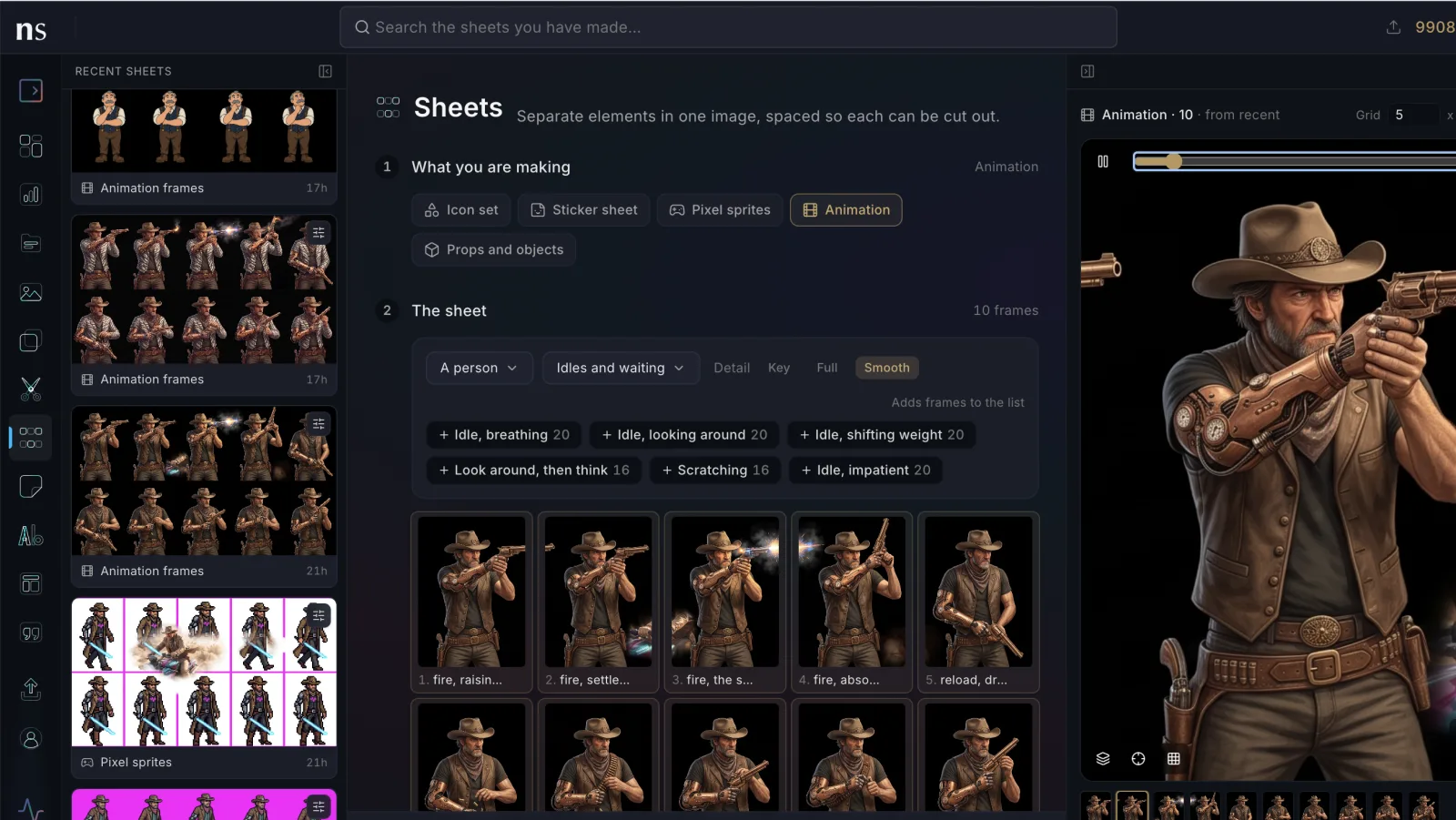
- Open Sheets from the sidebar, or go to /sheets. Step 1 is what you are making: an icon set, a sticker sheet, pixel sprites, an animation, or props and objects.
- Step 2 is the sheet itself. For an animation you add sequences from a menu: pick a subject — a person, a face, a creature, something happening, or a game character — then the motion, like walking sideways or picking something up, and how much detail it gets. For the other kinds you write the list, one line per piece, or open it as text and paste a whole list at once. The grid in the middle of the page fills in as you type, and you can rename a cell, drop one or add one. A line under it says how many pieces, how they are laid out, at what resolution, and how many pixels each one lands at.
- Step 3 is how it looks: who or what is in every frame, a style from the chips or in your own words, and which of the four keyable grounds to draw it on. You can also hand it a picture here — “a look”, to take the palette and finish from, or “a sheet like this”, to match one you already have.
- Step 4 is the line at the bottom of the column: which project it saves into, which model draws it, and what it costs in credits. Then press Generate, and the sheet opens in the player on the right.
What is in it today
- Five kinds: icon sets, sticker sheets, pixel sprites, animation, and props and objects. Each one carries the two or three rules that make it that kind — the even die-cut border on a sticker, the shared pixel grid on sprites, the frame-to-frame registration on an animation — so you never have to write them.
- Around seventy animation sequences, grouped by subject rather than by genre: a person (on their feet, talking and listening, moving toward or away from the camera, hands), a face (expressions, speaking, a blink, a nod), a creature, something happening (a balloon popping, a coin spinning, ice melting), and the game standards — platformer, shooter, fighting game, beat ’em up, metroidvania, top-down, isometric. Each sequence is written out frame by frame.
- Three levels of detail. Key is the drawings that define the motion, Full is the longer version where we wrote one, and Smooth adds an in-between after every drawing. Smooth is the default: six drawings read as a slideshow, twelve read as movement.
- A subject field. Name who or what is in the frames and the same one shows up in all of them, so a walk sheet and a jump sheet can be the same character.
- Twenty-five styles in three groups: photographed or rendered (a photograph, a film still, a studio portrait, a 3D render, stop motion), how it is drawn (anime cel, Cartoon Network, golden-age feature, rubber hose, neon tube and more), and what it is made of (inked cel, watercolour, gouache, cut paper, linocut, chalk pastel, comic halftone). Or your own words, or both.
- Four keyable grounds: black, white, chroma green and magenta. Pick the one that is not in the artwork.
- Four models, with the price up front: Nano Banana 2, Nano Banana Pro, GPT 2.5 Flare and Sunburst. The grid, the resolution and the credits sit next to the Generate button, and the planner already knows what each model can reach.
- Real frames in the grid. Once the sheet exists, the map you built becomes the sheet itself, cell by cell.
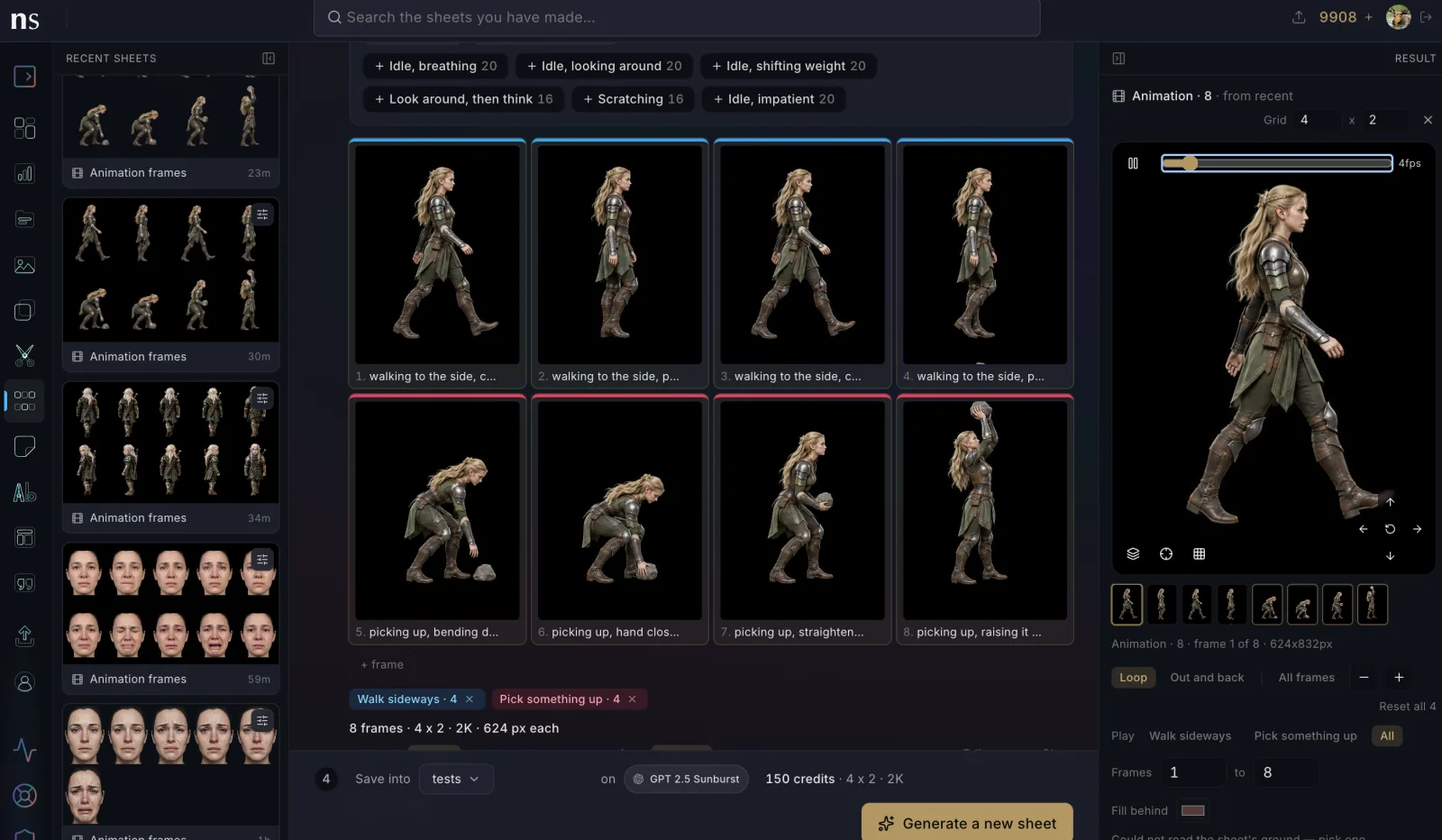
Playing it back and lining it up
A sheet of frames is meant to move, and watching it is the only way to tell whether it works. The player on the right plays whatever sheet is selected: the one you just made, one loaded from your recent sheets, or any image you already have.
- Any speed from 2 to 24 frames a second, looping or out and back, with a chip per sequence so a sheet holding a walk and a jump plays either one.
- Onion skin, a draggable baseline for the feet, and a light grid of thirds, which is how registration is actually judged.
- Move or scale any frame inside its cell, by dragging or with the arrows, one frame at a time or all of them at once.
- The alignment is saved onto the sheet. Line the frames up once and they play the same way on a collage canvas, in a shared scene, and in the atlas.
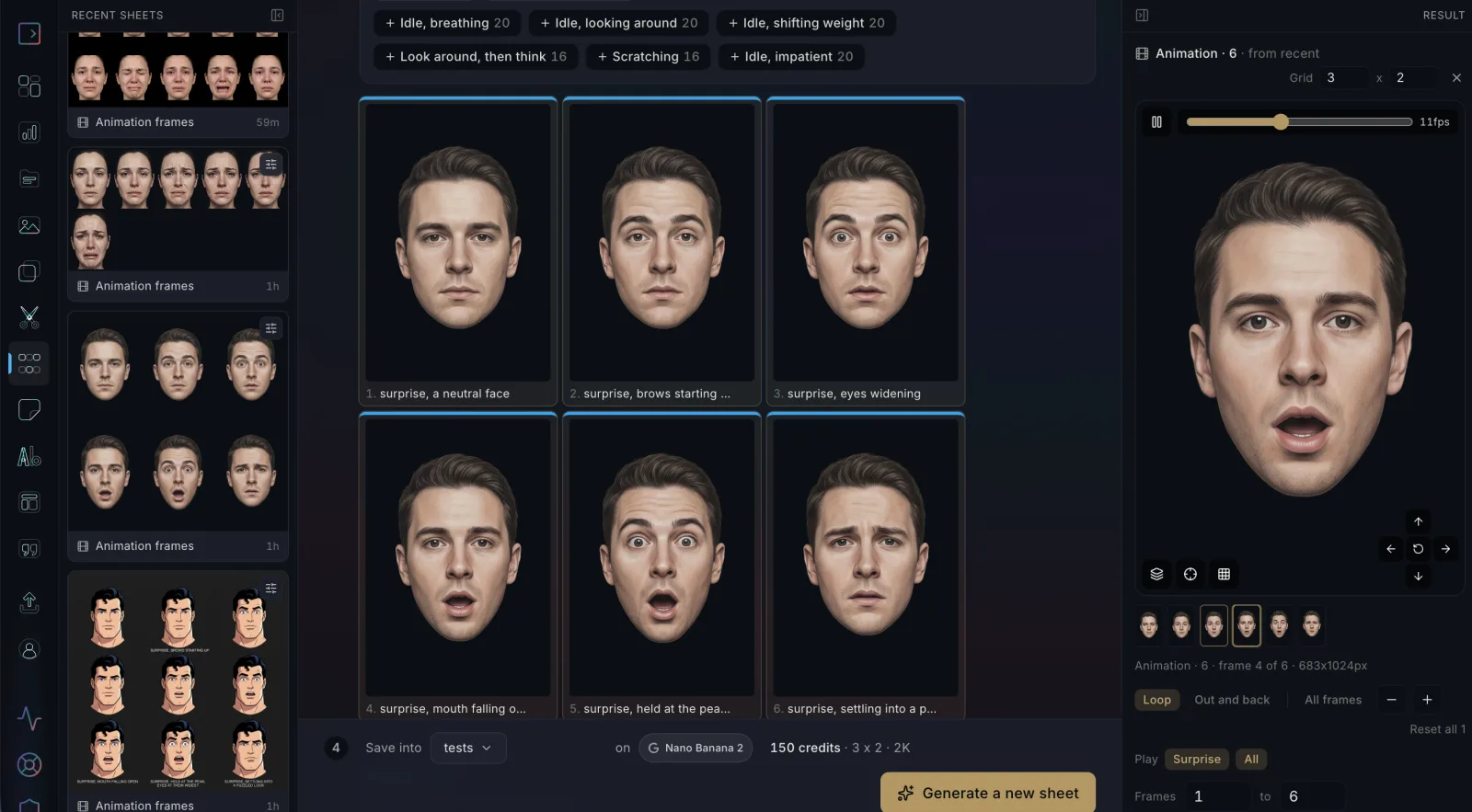
Getting the frames into your engine
Ask a sheet for its atlas and you get every frame’s pixel rectangle, the alignment you set, the speed, the pivot and one animation tag per sequence, in the Aseprite JSON format that Phaser, Pixi, Godot and Unity already import. Nothing to measure in the pixels, nothing to position by trial and error — the grid was decided in advance, so the numbers were already known.
Everywhere else in the studio a sheet is an ordinary picture: drop one on a collage canvas and it plays on hover, cut a sticker sheet apart in the Cutout Studio, or find it later by searching for what is inside it.
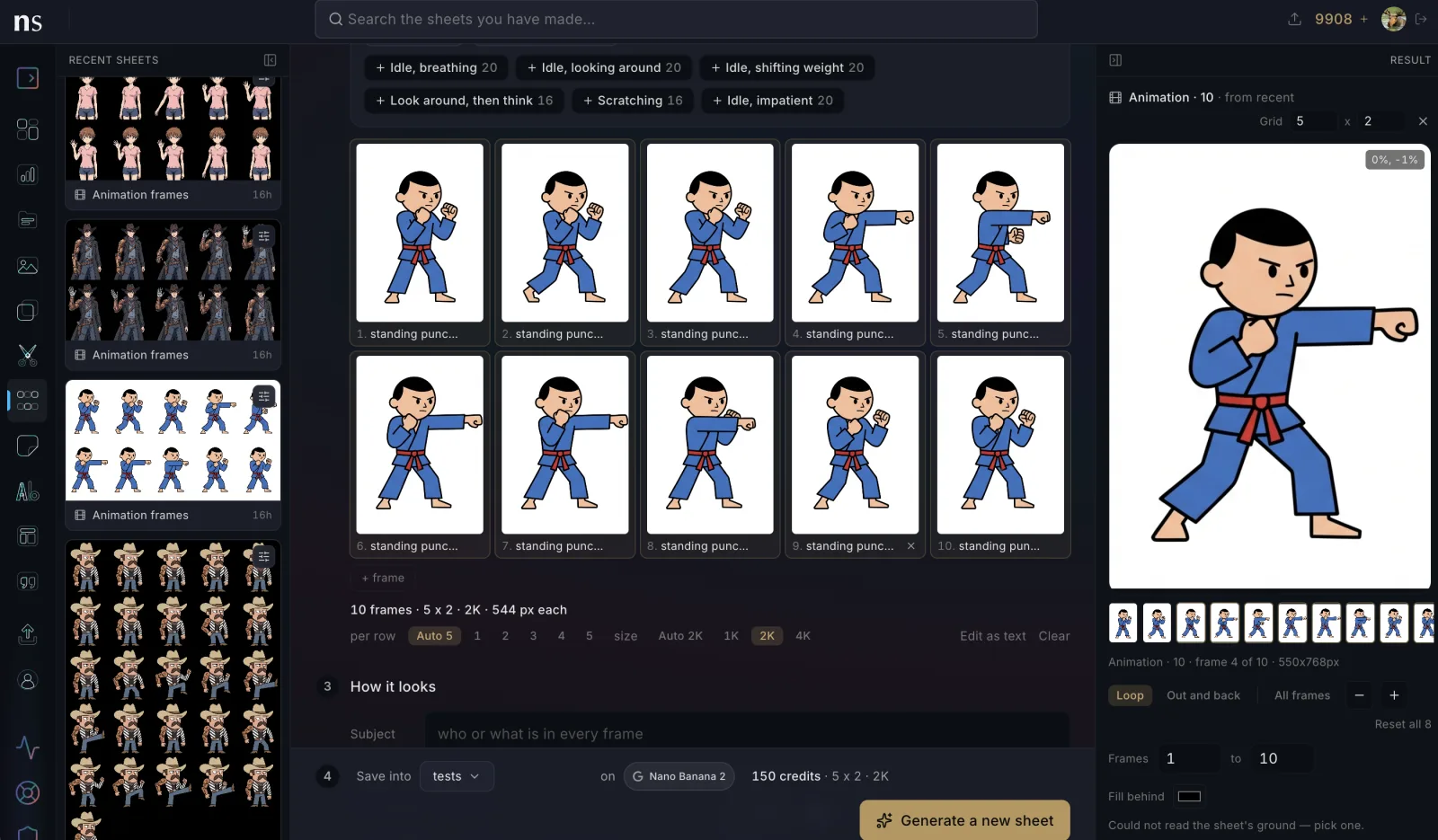
The same sheets over MCP
Everything above is available to an agent, with the same menus. sheet_options returns the kinds, grounds, styles, sequences and models as data, with the frame count for each level of detail. generate_sheet takes ids rather than prose — a kind, sequences by name, a subject, a style, a ground, a model — and plans, prompts and generates on our side, with a dry run that quotes the credits first. get_sheet_atlas hands over the frame coordinates. The prompt stays on our side, so the agent never has to guess what makes a sheet come back usable, and it cannot trim the one thing the prompt is there to protect: the count. The same endpoints are on the public API under /v1/sheets.
What comes next
This is the first release of Sheets and we will keep adding to it: more sequences and more subjects, swapping one frame for a better one from another take, exporting a sheet as an animation file, and whatever you ask for. If you make something with it, we would like to see it.